What Is IP Spoofing & How Does It Work? | Cyber Guide
May 21, 2026
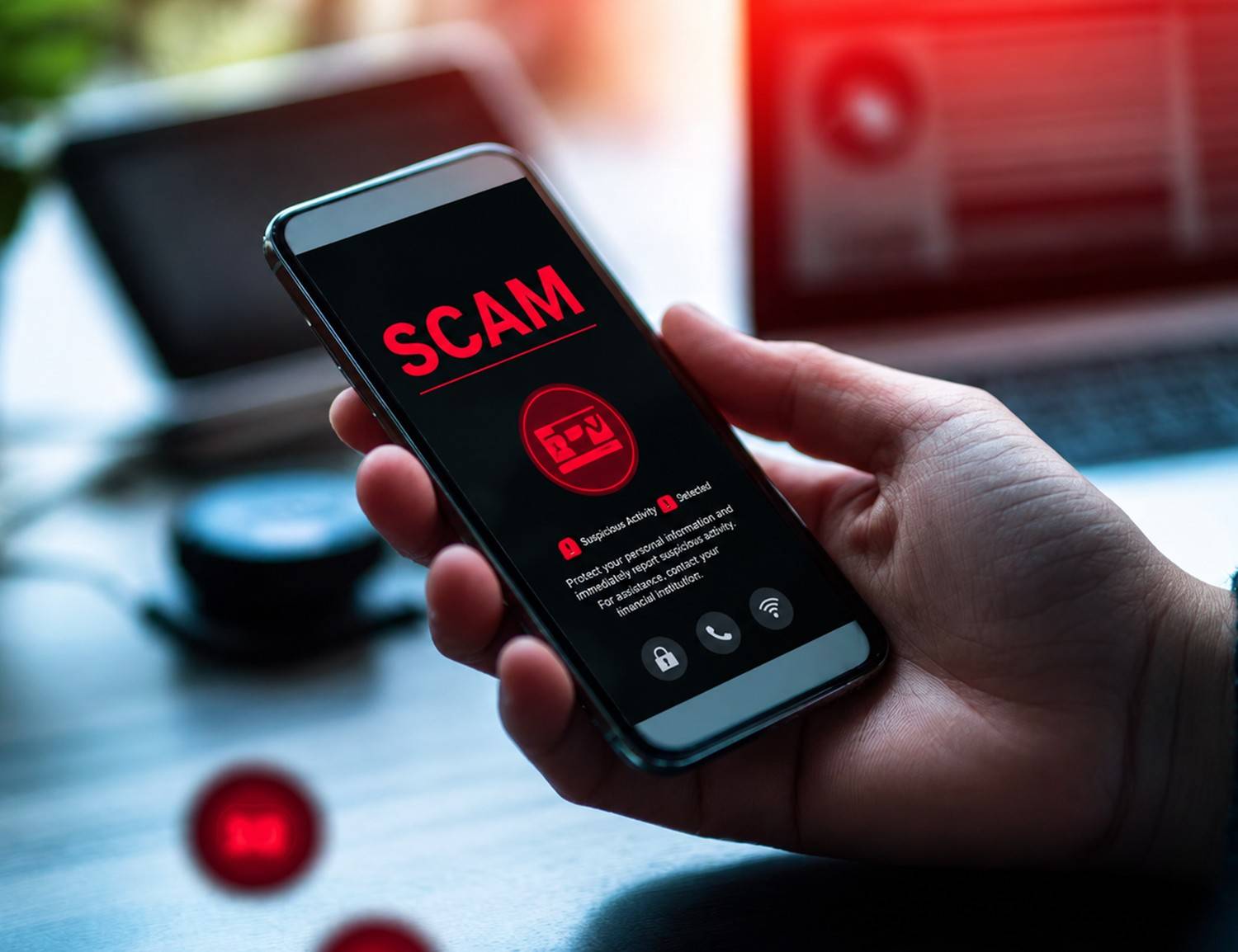
You've probably heard it before — "iPhones don't get viruses." While Apple's iOS is built on one of the most secure mobile operating systems in the world, the honest truth is that no device is completely immune to security threats. iPhones can be affected by malware, adware, spyware, and phishing attacks, especially if the device has been jailbroken, connected to unsafe networks, or exposed to malicious websites and apps.
If your iPhone has been acting strangely — running hot, draining battery fast, or showing unusual pop-ups — this guide will walk you through exactly how to remove iPhone viruses and malware, step by step. You'll also learn how to protect your device going forward so threats don't stand a chance.
Before diving into removal steps, it's important to understand what kind of threats can realistically impact your iPhone.
Important Note: True viruses that self-replicate across apps are extremely rare on non-jailbroken iPhones due to Apple's sandboxing architecture. However, the threats listed above are very real and increasingly common.
Knowing the symptoms is the first step toward a solution. Watch out for these red flags:
If you're experiencing one or more of these signs, it's time to take action.
Follow these steps in order. Most iPhone security issues can be resolved without visiting a store or losing your data.
This is simple but surprisingly effective. Many temporary glitches, minor iOS malware behaviors, and browser-based scripts are cleared by a basic restart.
How to restart:
A large number of iPhone adware cleanup needs start here. Malicious scripts often live inside browser caches and cookies.
Steps:
This removes cached files, cookies, and browsing history that may be feeding pop-ups or browser redirects.
Check your iPhone for any apps you don't recognize or didn't download yourself.
Steps:
Also check your App Library by swiping all the way to the right on your home screen. Malicious apps sometimes hide there.
This is a critical and often overlooked step. Hackers sometimes trick users into installing malicious configuration profiles through fake websites or apps. These profiles can alter your device behavior significantly.
Steps to check and remove:
Pro Tip: Only profiles from your employer, school, or trusted software should be present here. When in doubt, remove it.
Apple regularly releases security patches to address newly discovered vulnerabilities. Running an outdated iOS version leaves your device exposed.
Steps:
Keeping your iOS updated is one of the most powerful iphone security tips available — and it's free.
If your device is experiencing unusual data behavior or connecting to suspicious networks, resetting network settings can help clear iphone virus-related network hijacks.
Steps:
Note: This will erase saved Wi-Fi passwords, so have those ready.
If the above steps haven't resolved the issue, restoring from a trusted backup is your next move. Choose a backup from before the unusual behavior started.
Steps using iCloud:
Steps using a Mac or PC:
If nothing else works, a full factory reset will remove iPhone virus traces and wipe the device completely clean.
Steps:
After erasing, set up as a new device rather than restoring from backup to ensure no threats carry over.
Once your device is clean, keep it that way. These proven iphone security tips will help you stay safe long-term.
Always run the latest version of iOS and ensure all your apps are updated. Security patches in updates actively close known vulnerabilities.
Apple reviews every app before it appears on the App Store. Avoid sideloading apps from third-party websites, as this dramatically increases your risk of ios malware infections.
Use Apple's built-in Passwords app or a reputable password manager to generate and store strong, unique passwords for every account. Enable two-factor authentication (2FA) wherever possible.
Biometric authentication adds a powerful layer of device security. Go to Settings → Face ID & Passcode to configure it.
Public Wi-Fi networks are common attack vectors. Avoid accessing sensitive accounts on unsecured networks. Consider using a reputable VPN (Virtual Private Network) when you must use public Wi-Fi.
Never tap links in unsolicited text messages, emails, or pop-up notifications. Always verify the sender before interacting with any communication asking for personal or financial information.
Several reputable iOS security apps offer real-time protection, phishing link detection, and Wi-Fi security monitoring. Look for apps from well-established cybersecurity companies available on the App Store with strong verified reviews.
Sometimes the issue goes beyond the device itself. If you suspect your Apple ID was accessed by someone else:
Yes, visiting a malicious website can expose your iPhone to browser-based threats like adware, phishing scripts, or harmful redirects. Always close suspicious sites immediately and clear your browser data afterward.
While traditional antivirus software works differently on iOS than on desktop systems, reputable iPhone security apps can still provide valuable protection, especially for phishing detection, unsafe Wi-Fi alerts, and identity monitoring.
Jailbreaking removes Apple's security restrictions and significantly increases your vulnerability to ios malware. It voids your warranty and disables many built-in protections. It is strongly advisable to avoid jailbreaking your device.
In virtually all cases, yes. A full factory reset wipes all data, apps, and settings, removing any embedded threats. Setting up as a new device (rather than restoring a backup) ensures the cleanest possible start.
Your iPhone is one of the most personal and data-rich devices you own. While Apple's iOS ecosystem provides strong built-in protections, staying proactive about your device's security is always the smartest approach.
By following the steps in this guide to remove iPhone viruses, staying alert to warning signs, and adopting strong security habits going forward, you put yourself in an excellent position to keep your device — and your personal information — safe from harm.
Security doesn't have to be complicated. With the right knowledge and the right habits, you can enjoy everything your iPhone has to offer with total confidence and peace of mind.

Product keys delivered directly to your email after every confirmed order.
We review every concern fairly and work toward a resolution that makes sense.
All transactions are processed through Stripe, a trusted and encrypted payment gateway.
Our team is reachable by phone and email to assist with any order-related question.